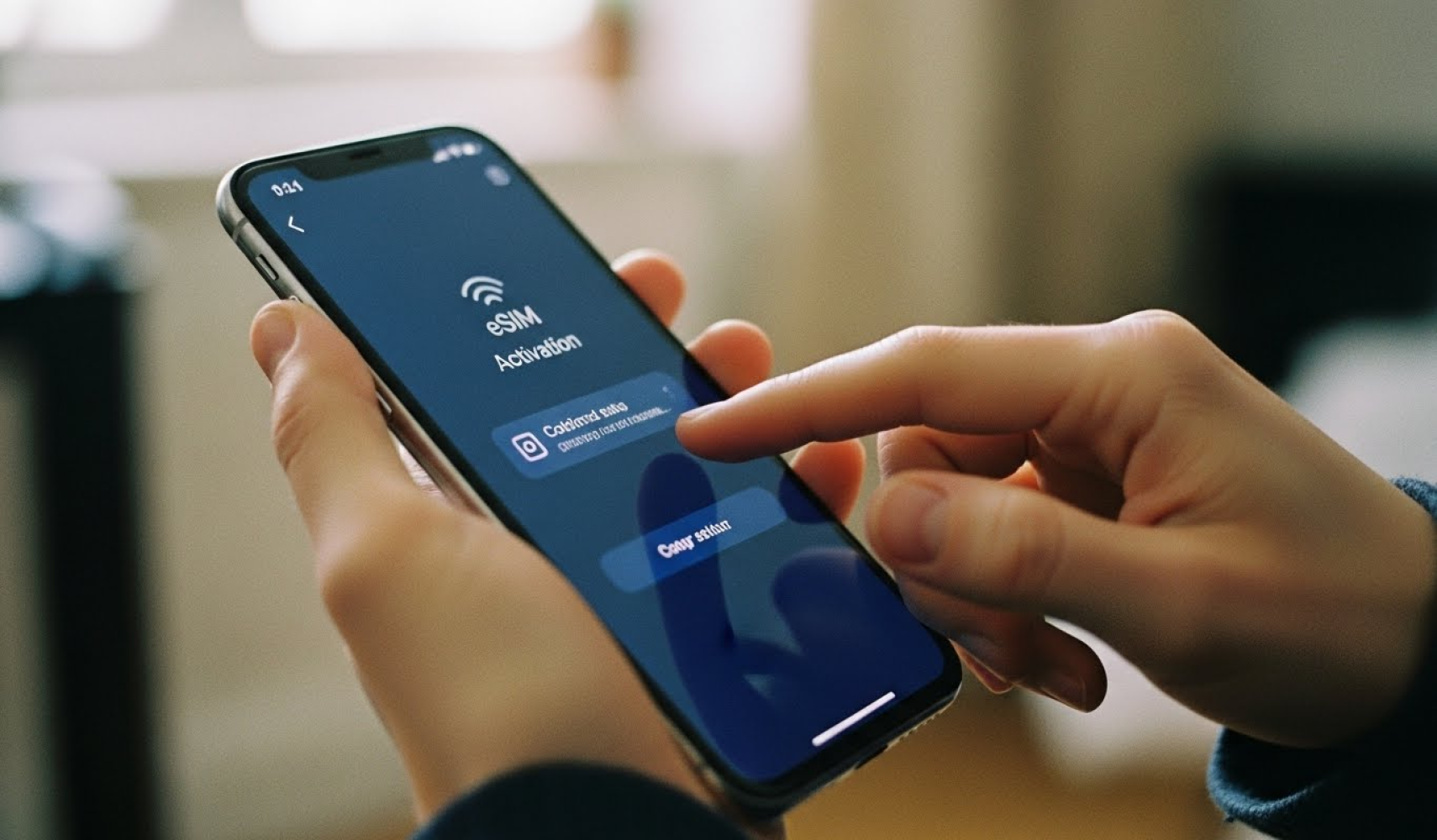
How to Set Up an eSIM on Your Smartphone
Setting up an eSIM on your smartphone is quick and straightforward. In most cases, the entire process takes just a few minutes and requires only a stable internet connection and a compatible device.
This guide explains how to install and activate an eSIM step by step on the most popular smartphones.
What You Need Before You Start
Before installing an eSIM, make sure that:
-
Your smartphone supports eSIM technology
-
Your device is unlocked
-
You have a stable Wi-Fi connection
-
You have received your eSIM QR code or activation details
How to Set Up an eSIM on an iPhone
On Apple iPhone, the process is fully integrated into iOS.
-
Open Settings
-
Tap Cellular or Mobile Data
-
Select Add eSIM
-
Choose Use QR Code
-
Scan the QR code provided by your eSIM provider
-
Follow the on-screen instructions to complete setup
Once installed, you can choose which line is used for mobile data, calls, and messages.
How to Set Up an eSIM on Android
On most Android devices (including Samsung, Google Pixel, and others):
-
Open Settings
-
Go to Network & Internet or Connections
-
Tap SIMs or Mobile Network
-
Select Add eSIM or Download a SIM
-
Scan the QR code
-
Confirm and wait for activation
Menu names may vary slightly depending on the manufacturer and Android version.
When Does the eSIM Activate?
-
Some eSIMs activate immediately after installation
-
Others activate only when you arrive at your destination
-
Activation timing depends on the plan and provider
Your phone will usually show a confirmation once the eSIM is ready to use.
Setting the eSIM as Your Primary Data Line
After installation:
-
Go to Mobile Data / Cellular settings
-
Select your eSIM as the default data line
-
Enable Data Roaming if required by your plan
This ensures your device uses the eSIM for internet access.
Common Setup Mistakes to Avoid
-
Scanning the QR code with a regular camera app
-
Installing the eSIM without Wi-Fi
-
Deleting the eSIM before activation completes
-
Forgetting to enable data roaming
Avoiding these mistakes helps ensure a smooth setup.
Can You Install an eSIM More Than Once?
No.
Most eSIM QR codes are single-use. If you change phones or delete the eSIM, you may need to request a new QR code from support.
Final Tips for a Smooth eSIM Setup
-
Install your eSIM before traveling
-
Keep a copy of your QR code until activation is confirmed
-
Do not remove the eSIM unless instructed
-
Restart your phone after installation if needed
With eSIM, mobile connectivity is faster, simpler, and more flexible than ever.
Which Devices Support eSIM in 2025
07 Jul 2025

How to Use eSIM When Traveling Abroad
19 Apr 2025
eSIM vs. Physical SIM: Which Is Better
19 Apr 2025